Firebase Setup For Web
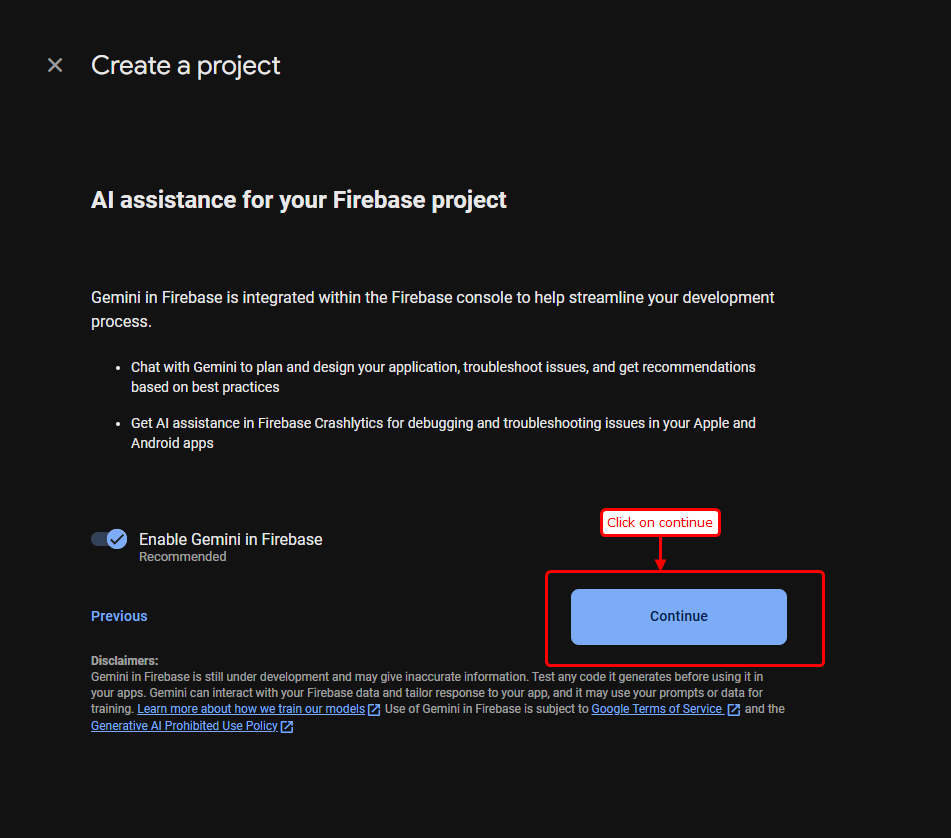
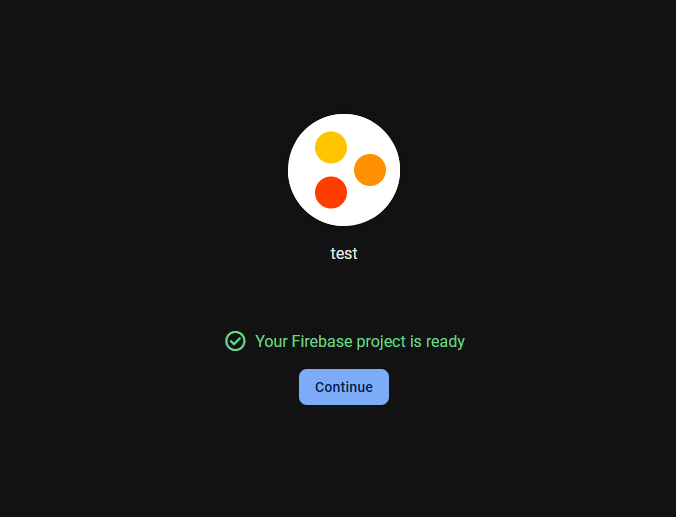
Following are the detailed steps to set up Firebase for your Dramavie web application. Firebase provides the backend infrastructure including database, authentication, and storage needed to power your app.
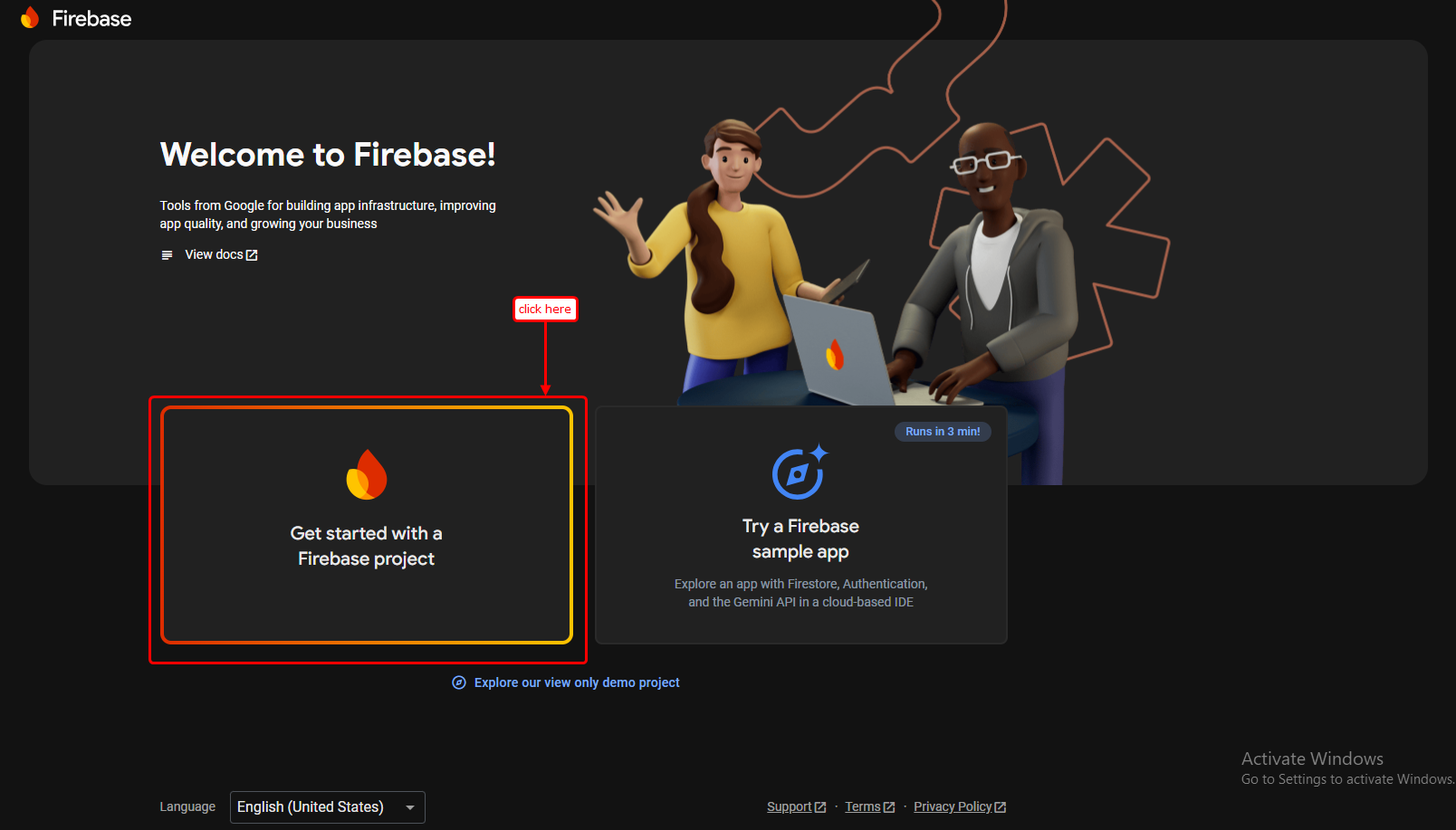
1. Create a Firebase Project
The first step is to create a home for your app’s data.
- Go to the Firebase Console.
- Click on Add Project.
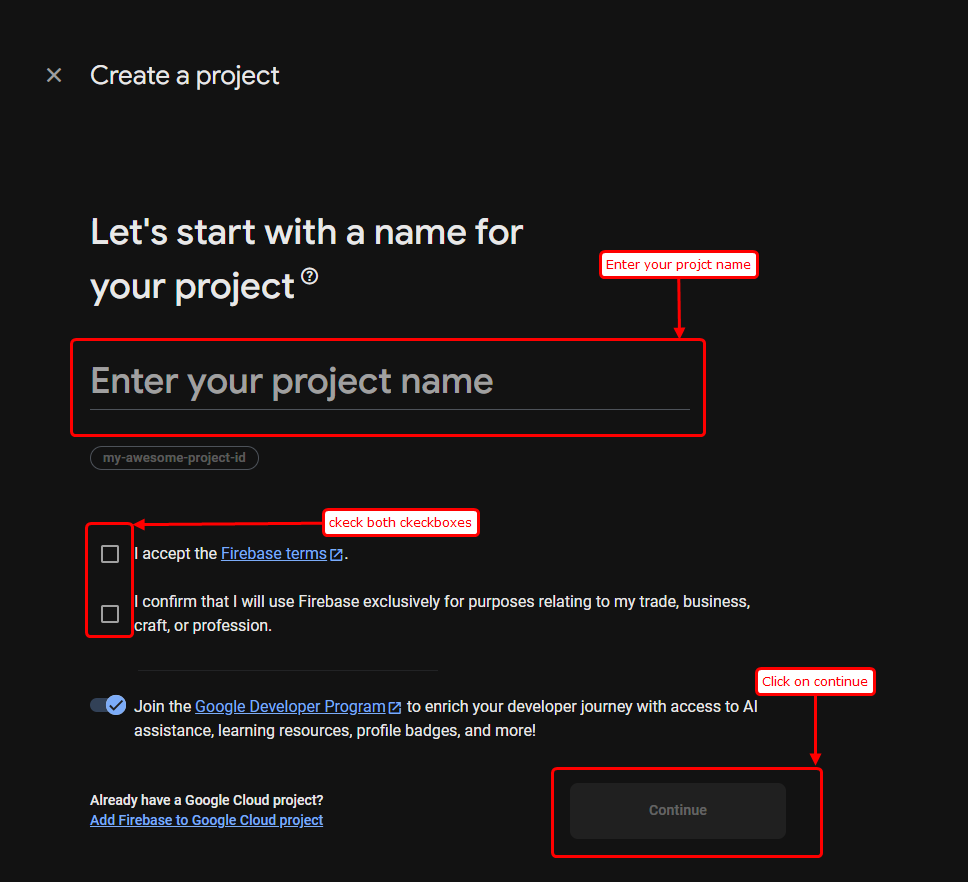
- Enter your project name (e.g., “Dramavibe-Web”).
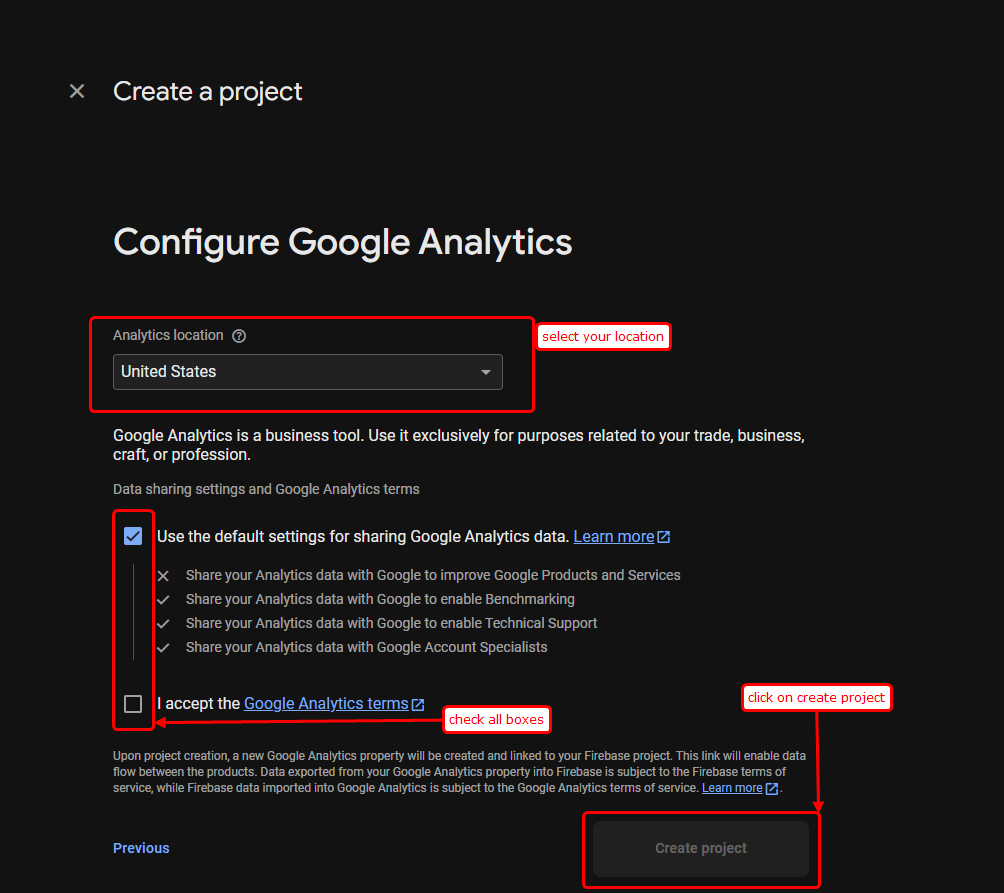
- You can optionally enable Google Analytics for tracking user behavior.
- Click Create Project and wait for the initialization to complete.
2. Project Dashboard Overview
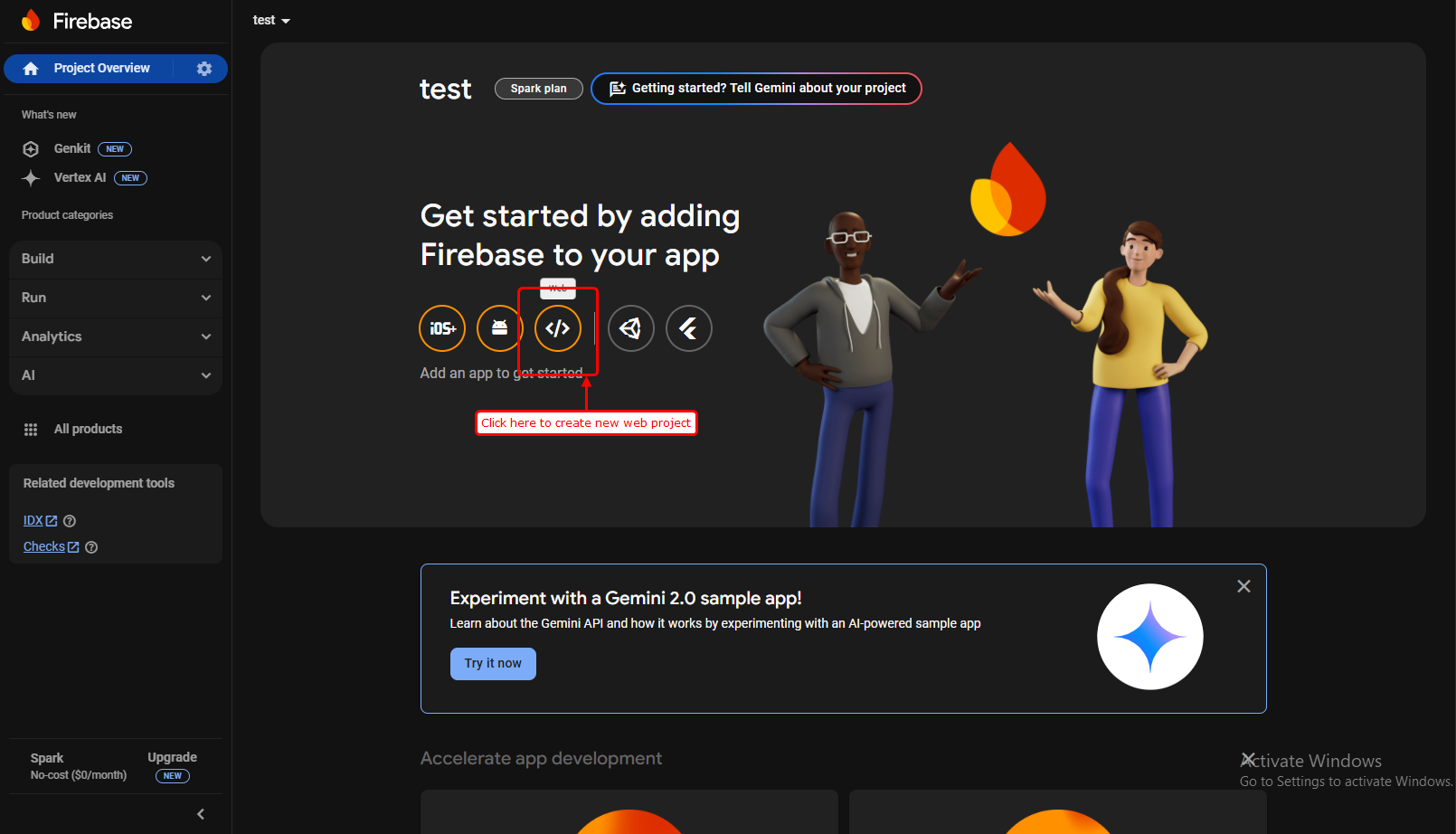
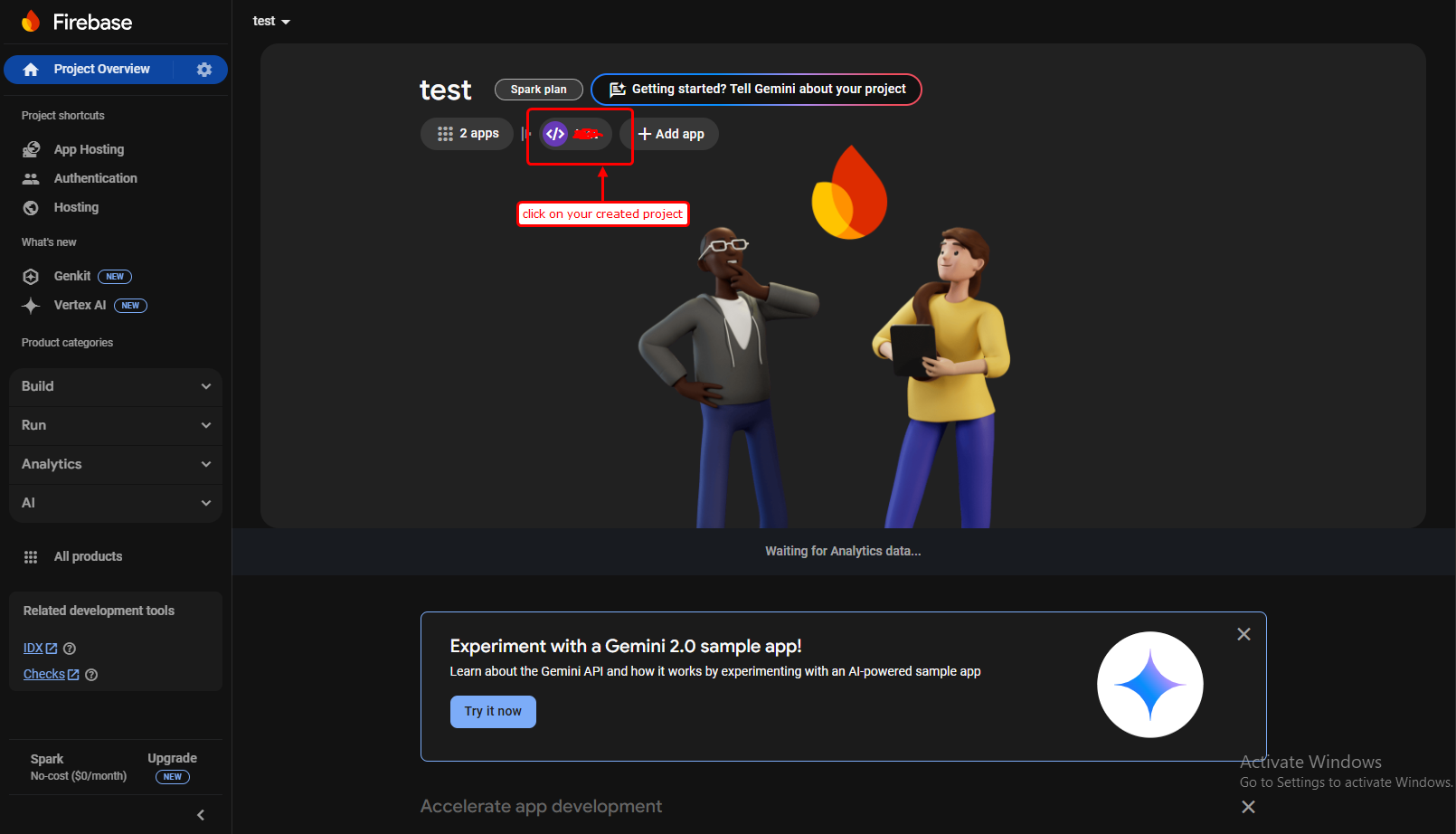
Once your project is ready, you will land on the Project Overview page. This is your command center where you can access all Firebase services from the left sidebar.
- Ensure you are in the correct project by checking the name at the top left.
- Familiarize yourself with the “Build”, “Release & Monitor”, and “Analytics” sections.
3. Register your App for Web
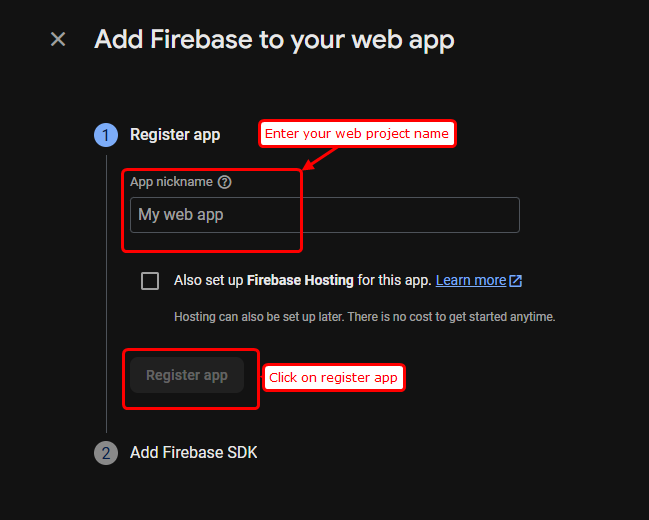
To connect your website, you need to register it as a “Web App”.
- Click on the Web icon
(</>)located in the center of the overview page. - Give your app a nickname (this is just for your reference).
- If you plan to host your site on Firebase, check the “Also set up Firebase Hosting” box.
- Click Register App.
4. Add Firebase SDK & Configuration
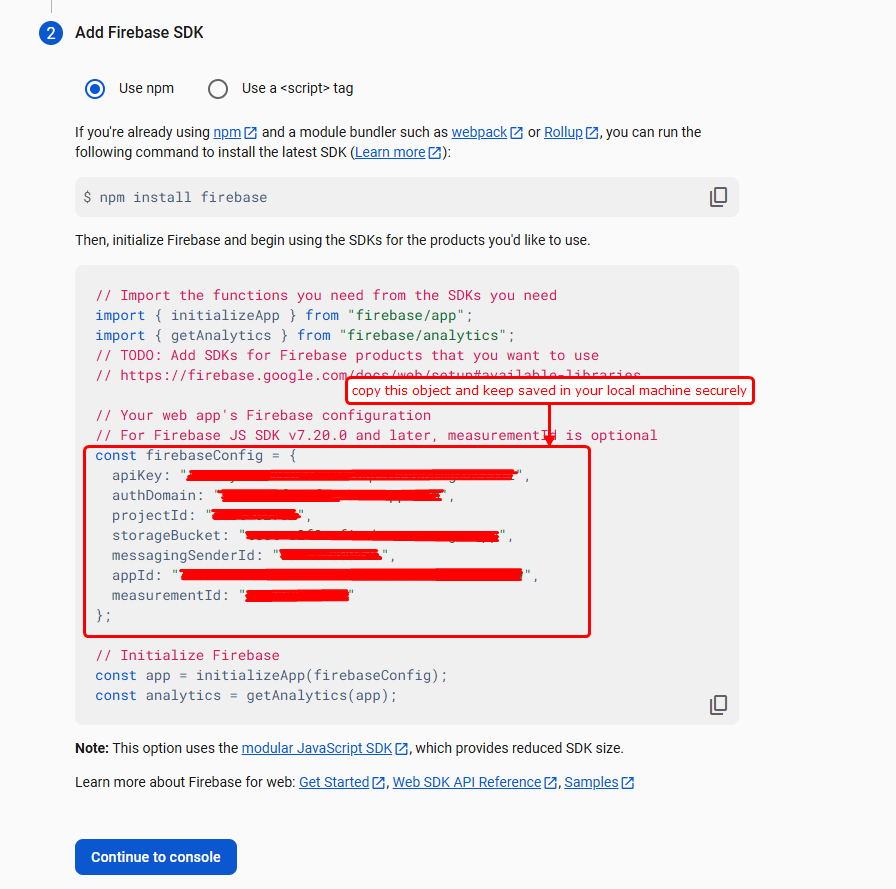
After registration, Firebase will provide a configuration object containing apiKey, authDomain, projectId, etc.
- You will need to copy this script and paste it into your project’s environment files or initialization logic.
- Security Note: While these keys are public, ensure you use Firebase Security Rules to protect your data later.
5. Set Up Firebase Authentication
Authentication allows users to sign up and log in to Dramavie.
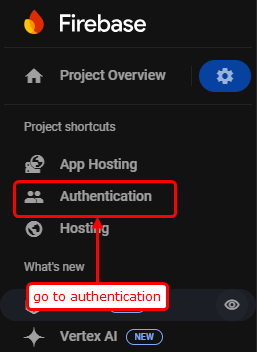
- Navigate to Build > Authentication in the left menu.
- Click Get Started.
- This enables the identity platform required for managing user accounts.
6. Configure Sign-in Methods
Dramavie supports multiple ways for users to join.
- Go to the Sign-in method tab.
- Enable Email/Password for standard login.
- You can also enable Google, Facebook, or Phone authentication depending on your app’s requirements.
- Click Save for each provider you enable.
7. Initialize Cloud Firestore
Firestore is the flexible, scalable NoSQL cloud database that will store all your Dramavie content.
- Go to Build > Firestore Database.
- Click Create Database.
- Select a location closest to your users for better performance.
- Start in Test Mode for initial development, but remember to switch to Production Mode before launching.
8. Export Configuration Keys
To finalize the connection between your code and Firebase:
- Go to Project Settings (the gear icon next to Project Overview).
- Scroll down to the Your apps section.
- Select your Web App and copy the
firebaseConfigobject. - This object must be used in your application’s
firebase.jsor.envfile.
9. Setup Cloud Storage
Storage is used for uploading and serving user-generated content like profile pictures and media.
- Navigate to Build > Storage.
- Click Get Started.
- Similar to Firestore, select your storage location and set your initial security rules.
10. Configure Security Rules
Security rules act as a firewall for your data.
- For both Firestore and Storage, go to the Rules tab.
- Define who can read and write data.
- Example Rule:
allow read, write: if request.auth != null;(Allows only logged-in users to access data).
11. Final Verification
Your Firebase project is now fully configured!
- Go back to the Project Overview.
- You should see your web app listed.
- Verify that Authentication, Firestore, and Storage are all showing “Active” states in the sidebar.
Next Steps 🚀
Now that the backend is ready, you can proceed to initialize the SDK in your Dramavie code and start building features!
Need more help? Check out the Firebase Documentation for advanced configurations.